Exporting Results
SpiderSuite provides flexible export capabilities, allowing you to save your crawl results in multiple formats for further analysis, archival, or integration with other tools.
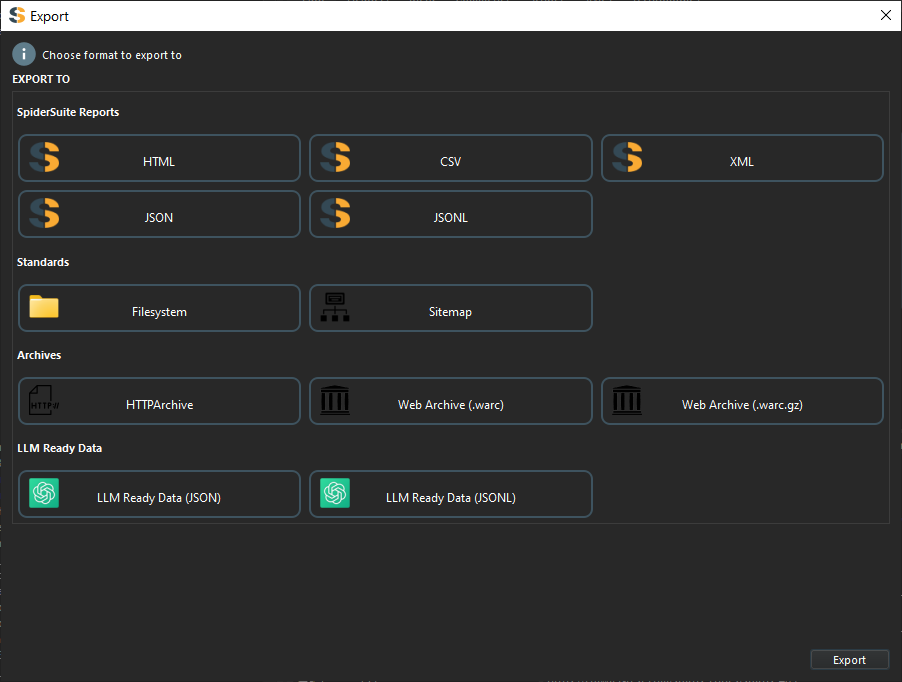
Supported Export Formats
SpiderSuite supports exporting data to the following formats:
Archive Formats
- HAR (.har) - HTTP Archive format, widely supported by browser developer tools and web analysis tools
- WARC (.warc) - Web ARChive format for long-term preservation of web content
- WARC Compressed (.warc.gz) - Compressed WARC format for reduced file size
Web Formats
- Sitemap XML (sitemap.xml) - Standard XML sitemap format for search engines and web crawlers
- HTML (.html) - Human-readable HTML report of crawled pages
- Filesystem - Save crawled content as files and folders mirroring the site structure
Data Formats
- CSV (.csv) - Comma-separated values for spreadsheet analysis
- JSON (.json) - JavaScript Object Notation for programmatic access
- JSONL (.jsonl) - JSON Lines format, one object per line
AI/ML Formats
- LLM-ready data - Optimized JSON and JSONL formats specifically prepared for training and fine-tuning large language models
How to Export
SpiderSuite offers two convenient methods to export your crawl data:
Method 1: Export from Table View
Use this method when working with the Sitemap or History table views.
- Locate the
Actionsbutton and click to open the actions menu. - Select
Exportfrom the menu - A dialog will appear showing all available export formats
- Choose your desired export format
- Click the
Exportbutton - Select a filename and location in the file dialog
- Click
Saveto complete the export
Sitemap/History Table → Actions → Export → Choose Format → Export → Save
Method 2: Export from Tree View
Use this method when working with the Sitemap tree view for hierarchical exports.
- Navigate to the
Sitemapview - In the tree view,
right-clickon any branch or node you want to export - Select
Exportfrom the context menu - A dialog will appear showing all available export formats
- Choose your desired export format
- Click the
Exportbutton - Select a filename and location in the file dialog
- Click
Saveto complete the export
Sitemap Tree View → Right-click Branch → Export → Choose Format → Export → Save
Export Format Details
HAR (HTTP Archive)
Perfect for sharing HTTP traffic with browser developer tools or other web analysis platforms. Includes complete request and response data.
Use cases:
- Browser DevTools analysis
- Performance analysis
- Sharing with web development teams
WARC (Web ARChive)
Industry standard for web archiving. Ideal for long-term preservation and compliance requirements.
Use cases:
- Web archiving projects
- Digital preservation
- Compliance and legal documentation
Sitemap XML
Generate search engine-compatible sitemaps from your crawl data.
Use cases:
- SEO analysis
- Site structure documentation
- Feeding other crawlers
Filesystem Export
Saves crawled pages as actual files in a directory structure that mirrors the website.
Use cases:
- Offline browsing
- Static site backups
- Content migration
CSV
Tabular data format perfect for analysis in spreadsheet applications like Excel or Google Sheets.
Use cases:
- Quick data analysis
- Reporting
- Filtering and sorting in spreadsheet tools
JSON / JSONL
Machine-readable formats for programmatic processing and integration with other tools.
Use cases:
- Custom scripts and automation
- API integration
- Database imports
LLM-ready Data
Specially formatted JSON and JSONL optimized for training, fine-tuning, or prompting large language models.
Use cases:
- AI/ML model training
- Dataset creation for LLMs
- Prompt engineering and RAG systems
Tips & Best Practices
Choosing the Right Format
- Use HAR for debugging and performance analysis
- Use WARC for archival and compliance
- Use CSV for quick analysis in spreadsheet tools
- Use JSON/JSONL for programmatic processing
- Use LLM-ready formats when preparing data for AI applications
- Use Filesystem when you need offline access to crawled content
Export Selection
When exporting from the tree view, you can:
- Export a single page by right-clicking on a leaf node
- Export an entire section by right-clicking on a branch node
- Export the complete site by right-clicking on the root node
File Size Considerations
Some export formats (especially WARC and Filesystem) can generate large files. Consider:
- Using compressed formats (.warc.gz) when file size is a concern
- Exporting specific branches rather than entire crawls
- Using JSONL instead of JSON for large datasets (better streaming support)
Troubleshooting
Export Dialog Not Appearing
If the export dialog doesn't appear:
- Ensure you have data to export (completed crawl)
- Check that you have write permissions for the target directory
- Try restarting SpiderSuite
Export Fails or Hangs
If an export operation fails:
- Verify you have sufficient disk space
- Check file path length limits (especially for Filesystem exports)
- Try exporting a smaller subset first
- Check the application logs for specific error messages
Unsupported Characters in Filenames
Some export formats may have restrictions on filenames:
- Avoid special characters in export filenames
- Use underscores instead of spaces
- Keep filenames reasonably short