Importing Results
SpiderSuite provides powerful import capabilities, allowing you to bring in crawl data from multiple file formats and third-party security tools. This enables you to consolidate data from different sources and leverage SpiderSuite's analysis features on existing datasets.
Supported Import Sources
SpiderSuite can import data from the following sources:
Archives
- HTTP Archive (.har) - Standard browser HTTP archive format
- Web Archive (.warc) - Standard web archival format
- Web Archive Compressed (.warc.gz) - Compressed WARC format
Crawlers
- Katana (.json) - JSON output from Katana crawler
- Katana (.plaintext) - Plain text output from Katana crawler
Proxies
- Burp Suite (.xml) - Export from Burp Suite proxy
- Caido (.csv) - CSV export from Caido
- Caido (.json) - JSON export from Caido
- Fiddler (.saz) - Fiddler session archive
SpiderSuite Reports
- SpiderSuite (.json) - SpiderSuite JSON export
- SpiderSuite (.jsonl) - SpiderSuite JSON Lines export
- SpiderSuite (.xml) - SpiderSuite XML export
How to Import Data
Follow these steps to import data into SpiderSuite:
Step 1: Open the Import Dialog
- Navigate to the
Sitemapview - Click the Import button in the toolbar
- The import dialog will appear
Step 2: Choose Import Format
In the import dialog, you'll see all available import formats organized by category:
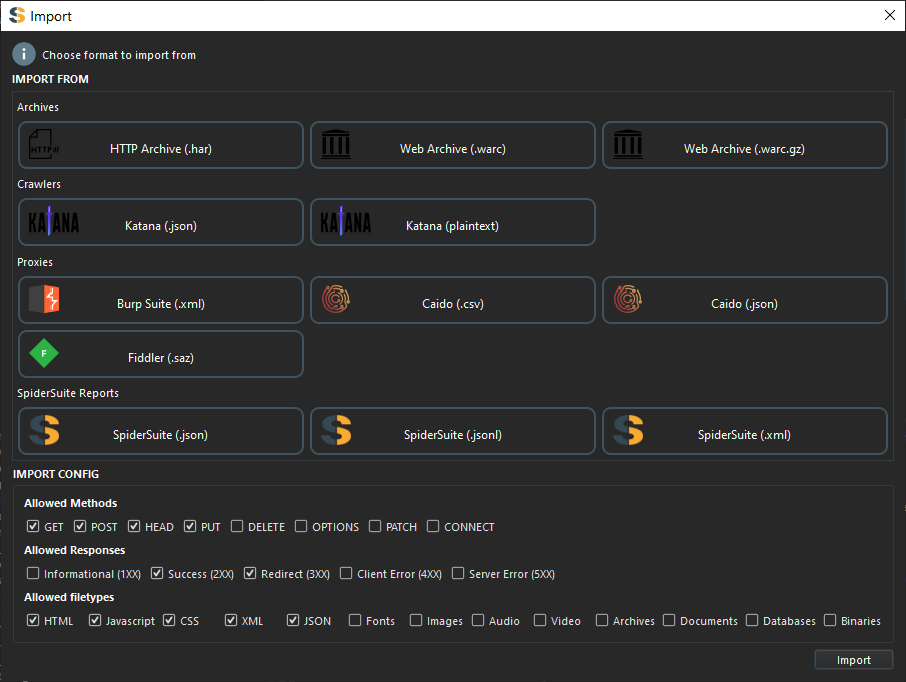
- Browse through the categories: Archives, Crawlers, Proxies, or SpiderSuite Reports
- Click on the format that matches your source file
- The format will be highlighted to indicate your selection
Step 3: Configure Import Options
Before importing, configure the filtering options to control what data gets imported:
Allowed Methods
Select which HTTP methods to import:
- ☑ GET - Standard retrieval requests
- ☑ POST - Form submissions and data creation
- ☑ HEAD - Header-only requests
- ☑ PUT - Resource updates
- ☑ DELETE - Resource deletion
- ☑ OPTIONS - CORS and capability checks
- ☑ PATCH - Partial resource updates
- ☑ CONNECT - Tunnel establishment
For most web application analysis, GET and POST are sufficient. Enable other methods if you're analyzing RESTful APIs.
Allowed Responses
Filter by HTTP response status code ranges:
- ☐ Informational (1XX) - Interim responses (100 Continue, 101 Switching Protocols)
- ☑ Success (2XX) - Successful requests (200 OK, 201 Created, 204 No Content)
- ☑ Redirect (3XX) - Redirections (301, 302, 307, 308)
- ☐ Client Error (4XX) - Client-side errors (400, 401, 403, 404)
- ☐ Server Error (5XX) - Server-side errors (500, 502, 503)
Enable 2XX and 3XX for mapping successful paths. Include 4XX for discovering unauthorized or missing resources.
Allowed Filetypes
Select which content types to import:
- ☑ HTML - Web pages and documents
- ☑ Javascript - JS files and scripts
- ☑ CSS - Stylesheets
- ☑ XML - XML documents and feeds
- ☑ JSON - JSON data and API responses
- ☐ Fonts - Web font files
- ☐ Images - Image files (PNG, JPG, SVG, etc.)
- ☐ Audio - Audio files
- ☐ Video - Video files
- ☐ Archives - ZIP, TAR, etc.
- ☐ Documents - PDF, DOC, etc.
- ☐ Databases - Database files
- ☐ Binaries - Executable and binary files
For web application security testing, focus on HTML, JavaScript, CSS, XML, and JSON. Disable media files to reduce clutter.
Step 4: Complete the Import
- After configuring your options, click the
Importbutton at the bottom right - A file picker dialog will appear
- Navigate to and select your source file
- Click
Opento begin the import process - SpiderSuite will process the file and import matching requests/responses
- A progress indicator will show the import status
- Once complete, the imported data will appear in your Sitemap view
Sitemap View → Import Button → Choose Format → Configure Options → Import → Select File → Complete
Import Configuration Presets
Here are recommended configurations for common use cases:
Security Testing (Comprehensive)
Methods: GET, POST, PUT, DELETE, PATCH
Responses: 2XX, 3XX, 4XX, 5XX
Filetypes: HTML, Javascript, CSS, XML, JSON
Import all functional endpoints including errors for thorough security analysis.
Content Mapping (Success Only)
Methods: GET, POST
Responses: 2XX, 3XX
Filetypes: HTML, Javascript, CSS, XML, JSON
Focus on successfully retrieved content for site structure analysis.
API Analysis
Methods: GET, POST, PUT, DELETE, PATCH, OPTIONS
Responses: 2XX, 3XX, 4XX
Filetypes: JSON, XML
Capture API endpoints and responses including client errors.
Minimal Import (Pages Only)
Methods: GET
Responses: 2XX
Filetypes: HTML
Import only successfully loaded HTML pages for quick site mapping.
Format-Specific Notes
HAR Files
- Ensure the HAR file is properly formatted JSON
- Large HAR files may take time to process
- Browser developer tools can generate HAR files from the Network tab
WARC Files
- Both compressed (.warc.gz) and uncompressed (.warc) are supported
- WARC files from web archives like Internet Archive are compatible
- May contain duplicate requests; SpiderSuite will handle deduplication
Burp Suite XML
- Export from Burp Suite: Proxy → HTTP History → Select items → Save items
- Includes full request/response data
- Preserves Burp Suite findings and annotations
Caido
- Both CSV and JSON formats supported
- CSV format has limited metadata; JSON is recommended
- Export from Caido: Project → Export
Fiddler SAZ
- SAZ files are ZIP archives containing sessions
- Automatically extracts and processes all sessions
- Preserves Fiddler comments and markers
Katana
- Supports both JSON and plaintext output formats
- JSON format includes more metadata
- Plaintext is a simple list of discovered URLs
Troubleshooting
Import Fails to Start
Symptoms: Nothing happens after selecting a file
Solutions:
- Verify the file format matches the selected import type
- Check that the file isn't corrupted (try opening in a text editor)
- Ensure you have read permissions for the file
- Try moving the file to a location without special characters in the path
No Data Appears After Import
Symptoms: Import completes but Sitemap is empty
Solutions:
- Check your filter settings - you may have disabled all content types
- Verify the source file actually contains data (not empty)
- Try enabling all options temporarily to see if data imports
- Check the application logs for filtering messages
Import Takes Very Long
Symptoms: Import progress stalls or runs for extended time
Solutions:
- Large files (>500MB) naturally take longer to process
- Try importing a smaller subset if possible
- Close other applications to free up system resources
- For WARC files, try the compressed (.warc.gz) format
Partial Import
Symptoms: Only some data imports, not everything expected
Solutions:
- Review your filter configuration - ensure all needed options are enabled
- Some source formats may not contain complete request/response data
- Check if the source tool filtered data during export
- Verify file wasn't truncated during transfer
Invalid Format Error
Symptoms: Error message about invalid or unsupported format
Solutions:
- Double-check you selected the correct import format
- Verify the file wasn't corrupted during download/transfer
- Some tools may export in slightly different formats - try alternate export options
- Check if the file requires preprocessing (e.g., decompression)
Best Practices
Before Importing
Verify file integrity - Check that downloaded files aren't corrupted
Know your data - Understand what's in the file before importing
Start with filters - Use restrictive filters first, then expand if needed
Backup existing data - Import into a new project if you want to preserve existing work
During Import
Be patient - Large files take time to process
Monitor progress - Watch for any error messages or warnings
Don't interrupt - Let the import complete fully
After Import
Verify data - Check that expected URLs and endpoints appear
Review filters - Adjust and re-import if you missed important data
Use HTTPQL - Query imported data to validate completeness
Export backup - Save imported data in SpiderSuite format for future use
Combining Multiple Imports
You can import multiple files into the same project:
- Import your first file as normal
- Configure filters for your second import
- Click Import again and select a different file
- Data will be merged with existing content
- Duplicates are automatically detected and handled
This is useful for:
- Combining data from multiple tools
- Merging crawls from different time periods
- Consolidating team member findings