Intercepting
Only http(s) traffic from the in-built SpiderSuite's chrome can be intercepted.
Configure Interceptor
Configure the interceptor to your liking,by choosing what to intercept, Scope of interception and also automatoc match and replace rules.
Open Browser
Open the chrome browser by clicking the chrome button 
Start Interceptor
To begin intercepting proxied traffic, click on the button  to
to 
This will result to http(s) requests being intercepted.
Interception
Intercepted Request
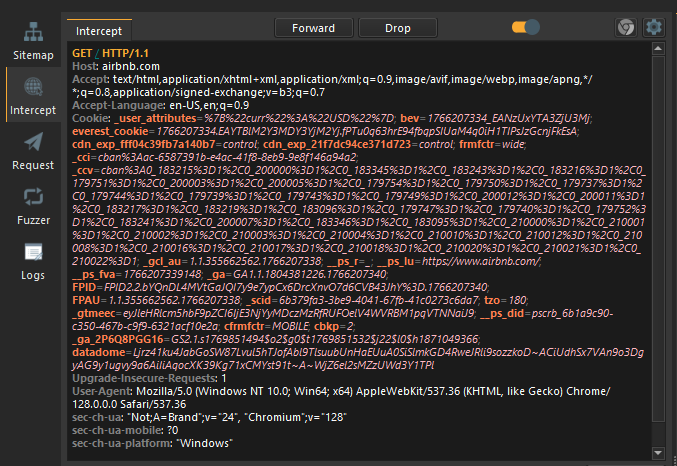
To intercept response of a request;
- Right click on request to open context menu.
- CLick on the
Intercept Response.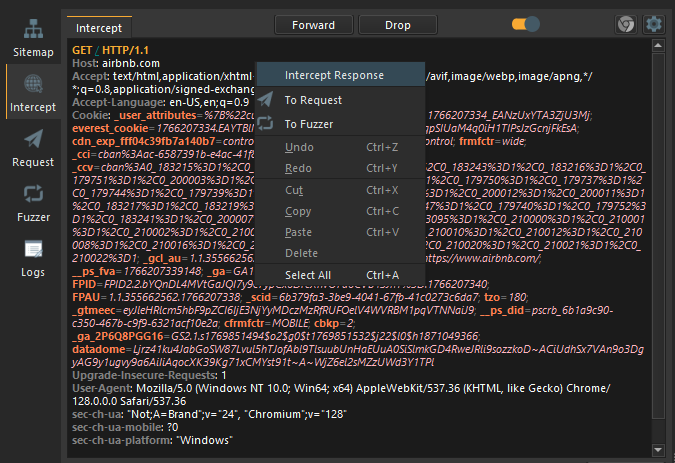
Intercepted Response
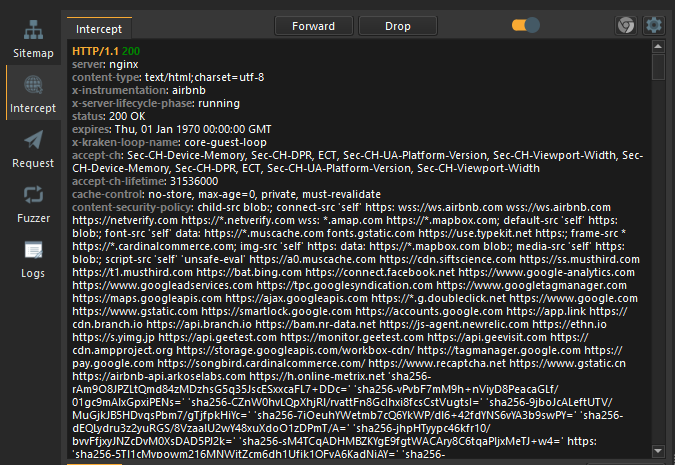
Modifying Intercepted Traffic
To make modifications to an intercepted HTTP requests and responses,
click inside the intercept Editor then make the modification and proceed with Fowarding the request or response.
Click on the undo button to restore traffic to its original state.
Forwarding Intercepted Traffic
Clicking on the [Forward] button will send the traffic to its target recipient.
Any forwarded traffic that was modified from its original state will be marked as Edited within the State column of traffic tables.
Dropping Intercepted Traffic
Clicking on the [Drop] button will stop the traffic from being sent to its target recipient.
Sending Traffic to Other Interfaces
To send intercepted traffic to other interfaces, right-click within the editor to open the context menu, and select a Send to...