USER INTERFACE
SpiderSuite features an intuitive interface designed for efficient web application analysis and testing.
Main Window
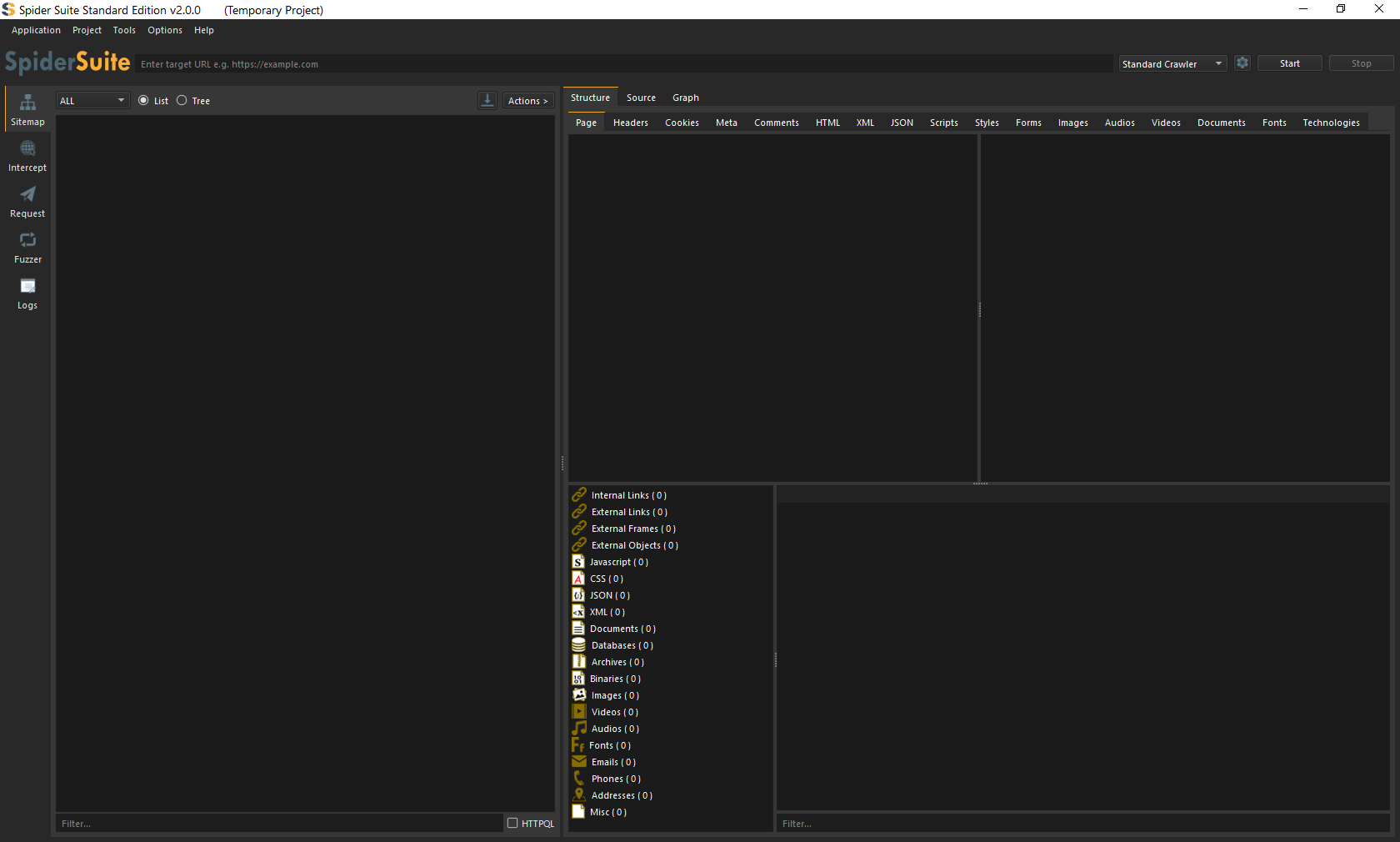 The main window is the central hub of SpiderSuite, where you can access all features and tools. It consists of several key components:
- Menu Bar - Access to main application functions.
- Toolbar - Quick access to common actions.
- Sitemap Panel - Displays crawled pages in a tree or list view.
- Content Viewers - Multiple tabs for viewing different aspects of selected pages.
- Status Bar - Shows crawler progress and application status.
Menu Bar
The menu bar provides access to all major functions:
- Application - Application actions.
- Project - Save, clear and close project.
- Options - Preferences and configurations.
- Tools - Access to decoder, compare, and other utilities.
- Help - Documentation and about information.
Sitemap View
The Sitemap View displays all discovered pages and resources during crawling.
Features
- Tree View - Hierarchical display of pages by path structure.
- List View - Flat list of all discovered URLs.
- Filtering - Filter pages by keywords or HTTPQL queries.
Actions
Right-click on any item in the sitemap to access contextual actions:
- Send to Request.
- Send to Fuzzer.
- Send to Compare.
- Export selected items.
- Copy URL.
- Show in Graph View.
The sitemap updates in real-time as the crawler discovers new pages.
Intercept View
The Intercept View allows you to intercept and modify HTTP(S) traffic.
Key Features
- History Table - View all proxied requests and responses.
- Intercept Mode - Pause and modify requests and responses before sending.
- Match & Replace - Automatic modification rules.
Usage
- Launch a browser from and intercept HTTP traffic.
- Enable intercept mode if you want to modify requests.
- Browse normally - all traffic will appear in the history.
- Click on any item to view details in the request/response viewers.
Request View
Send individual HTTP requests and analyze responses.
Features
- Request Editor - Craft custom HTTP requests
- History - Track all sent requests
How to Use
- Craft HTTP request.
- Click Send to execute the request.
- View the response in the response panel.
You can send sitemap items to the Request tool by right-clicking and selecting "Send to Request".
Fuzzer View
Automate testing by fuzzing HTTP requests with custom payloads.
Features
- Payload Positions - Mark parts of the request to fuzz.
- Payload Sets - Define multiple payload sources.
- Attack Types - Sequential or parallel.
- Results Table - Analyze fuzzing results.
Workflow
- Define the base request (from sitemap or manually).
- Mark fuzzing positions in the request.
- Load or create payload lists.
- Select attack type.
- Start fuzzer and monitor results.
Structure View
Categorizes webpage content into organized sections.
Tabs
- Headers - Request and Response headers.
- Cookies - Cookie values.
- Forms - All form elements found on the page.
- Links - Internal and external links.
- Scripts - Embedded script sources.
- Styles - Embeded CSS sources.
- Media - Images, Videos, Audios.
- Comments - HTML/JS/CSS comments.
- Technologies - Detected frameworks and libraries.
Source View
View the raw source code and data of selected pages.
Features
- Syntax highlighting - Detects and highlights the syntax.
- Prettify - Formats HTML, Javascript, Json, XML and CSS for better readability.
- Search - Search for occurence of provided phrase/keyword/expression.
Features
- Syntax highlighting.
- Search and find functionality.
- Copy to clipboard.
- Export individual components.
Graph View
Visualize the relationship between pages using interactive graphs.
Visualization Options
- Tree Layout - Hierarchical tree structure.
- Dot Layout - Force-directed graph.
- Zoom Controls - Zoom in, out, or fit to view.
- Node Actions - Click, hover, or right-click on nodes.
Interactions
- Double-click a node to view its details in Structure/Source views.
- Hover over a node to see a quick summary.
- Right-click for contextual actions (send to tools, export, etc.).
The Graph View is excellent for understanding site architecture and discovering hidden relationships between pages.